Making it essential for fleet managers and operators. It simplifies the process of searching for specific footage by providing step-by- step instructions, ensuring users can quickly access the information they need. Additionally, it highlights best practices for sharing and downloading footage, enhancing collaboration among team members. By following this guide, users can streamline their footage retrieval process and improve operational efficiency.
Quick Table of Contents
Step 1
Navigate to https://app.fleetclear.com/
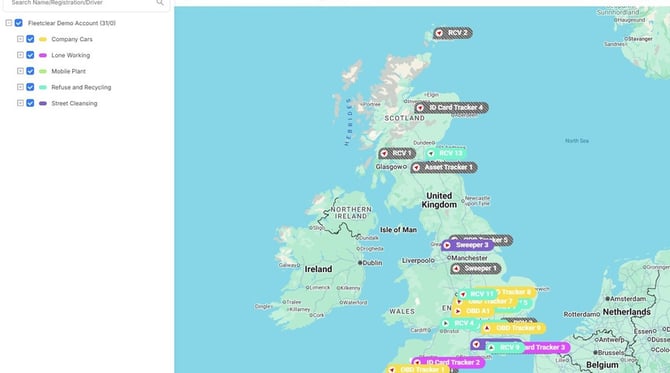
Footage Retrieval from Video Search
Step 2
From the side panel menu, click on Video.
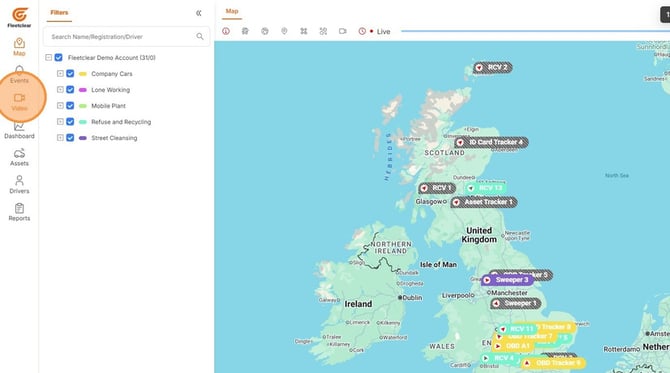
Step 3
Select your asset, driver or division. Along with the date and time stamp of the footage you require. It is best practice to try and aim for a 30 minute window of time.
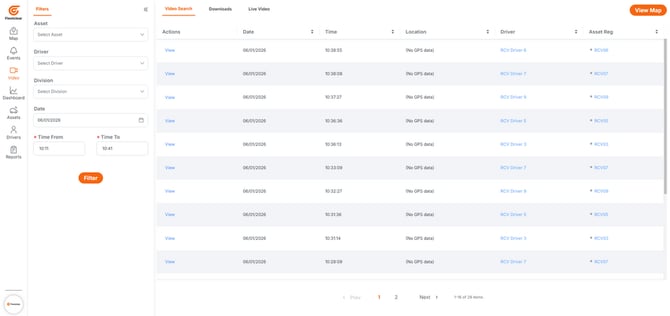
Step 4
Once you've found the timestamp closest to your required search parameters, click View.
Step 5
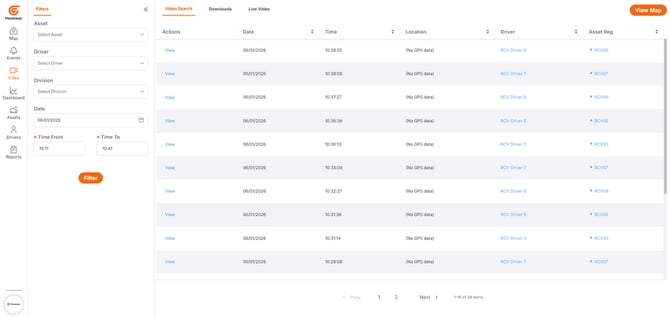
You can toggle the time periods the timeline shows from 15 seconds to 30 seconds to 1 minute, 5 minutes and 15 minutes. Select the timeframe most desired.
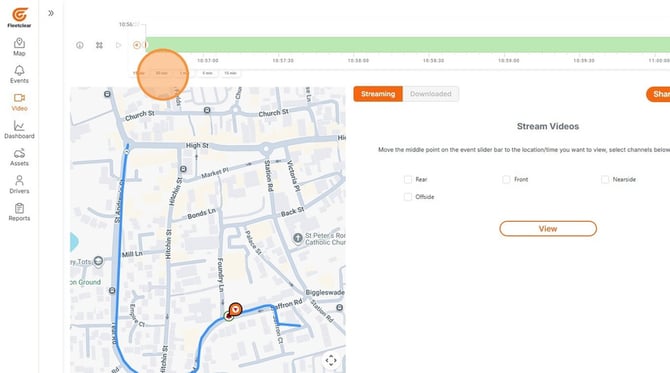
Double arrows indicated above allows you to skip to another time segment.
Step 6
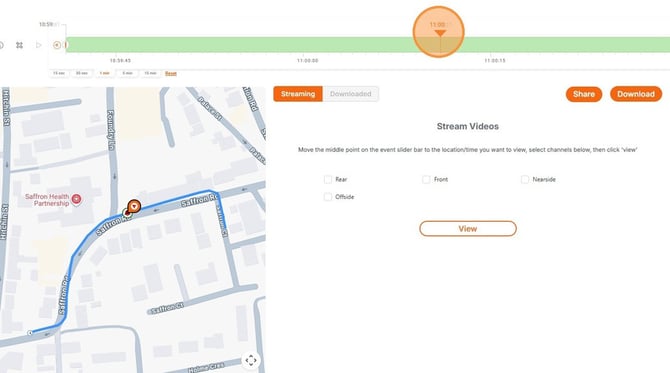
Using the Orange Triangle on the Timeline, move this along to track your asset to the area of the journey desired for footage retrieval.
Step 7
Take the trim to just before the asset on the timeline.
Step 8
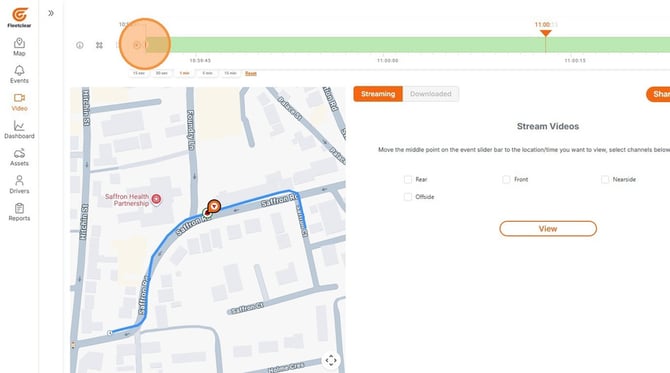
And then just after the asset to get a few moments either side.
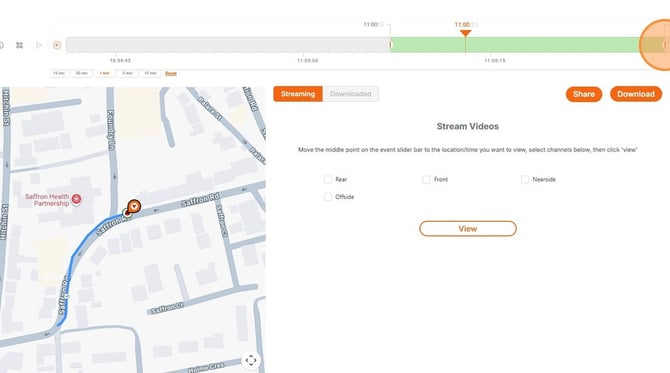
Step 9
Once you've got your desired timeframe on the timeline, you can then select one or more cameras available on your asset. For the purpose of this guide, we will select 1 camera, the Front.
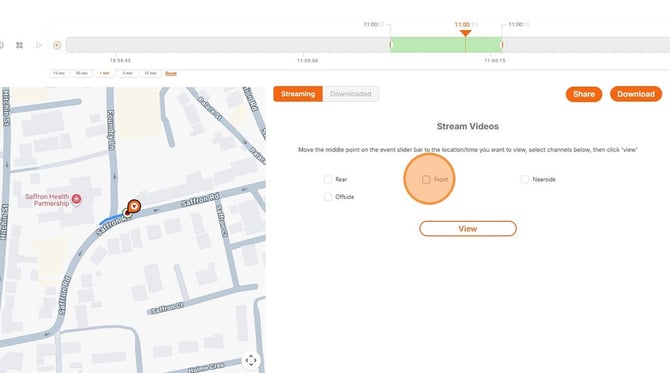
Step 10
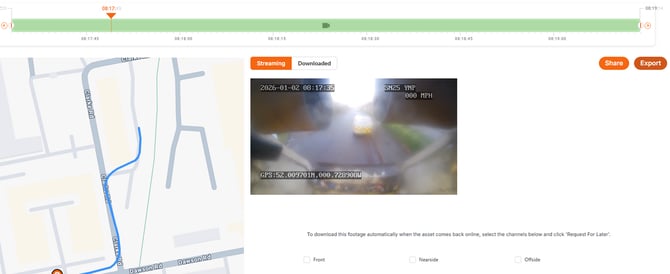
Click "View" to stream the video within the platform. This is recommended. Please note,
streaming is only available when the asset is online and there is a stable 4G connection.
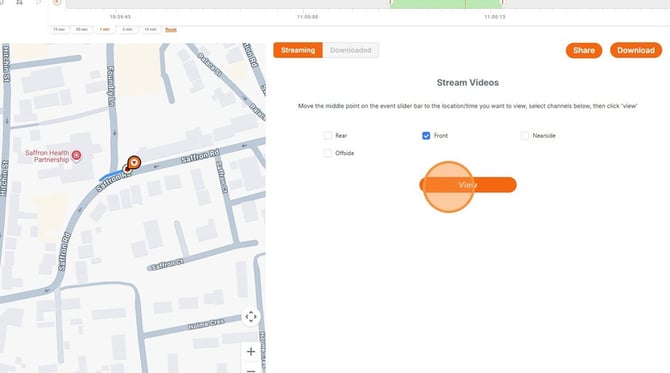
If the asset is offline, a ‘Request for Later’ button will appear. Clicking this will request footage when asset is next online.
Step 11
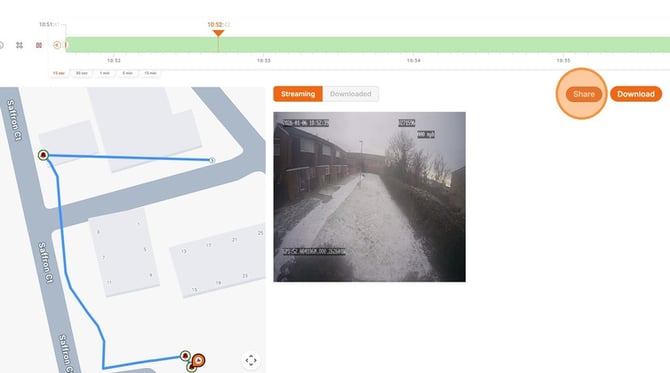
Once you have trimmed the footage to the desired timeframe, you can either Share or Download your footage. To Share, Click "Share".
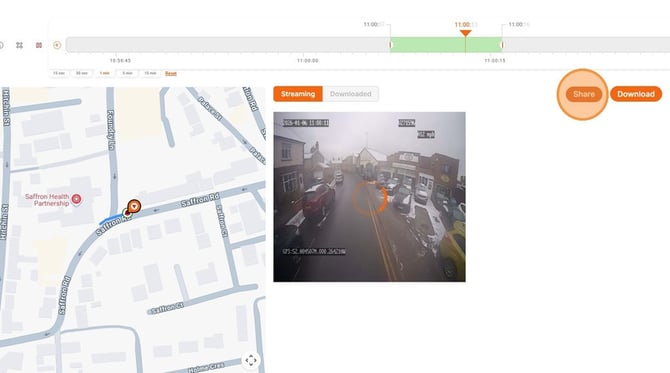
It is advisable to keep the footage concise while utilizing the appropriate cameras. Shorter clips along with fewer cameras result in quicker download times.
Step 12
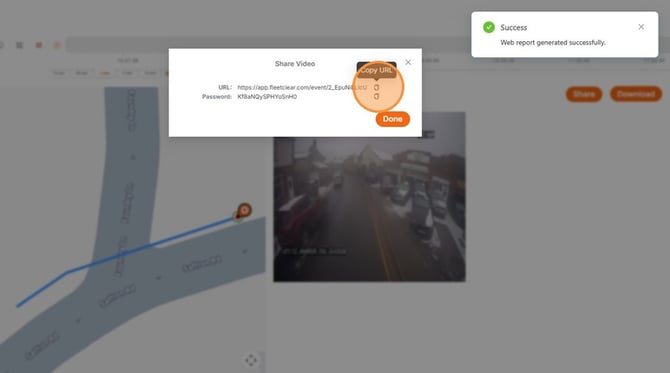
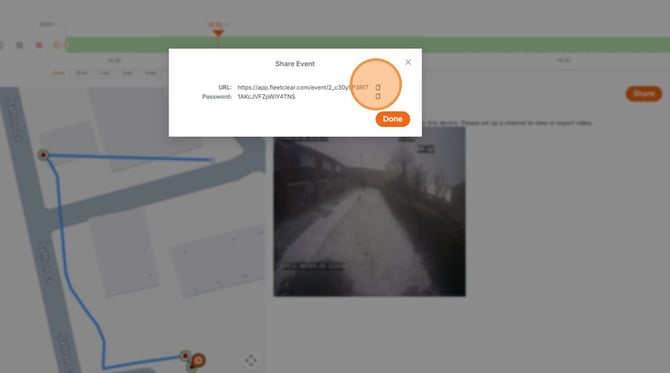
You can copy the unique URL and password to your clipboard and share them internally with colleagues or third parties outside of the Platform.
Step 13
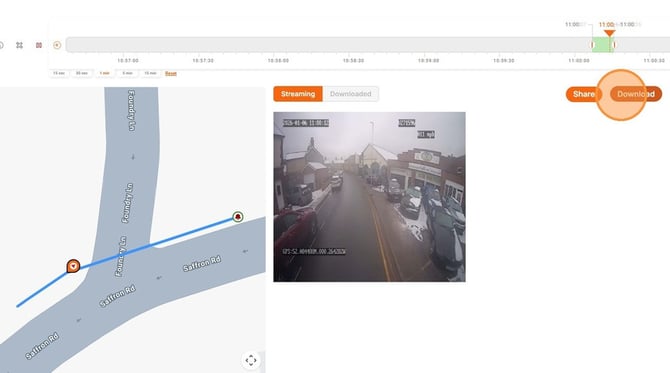
To download the footage file, Click "Download". You will be notified by the email address registered on your account once this is ready.
Footage Retrieval from Events
Step 14
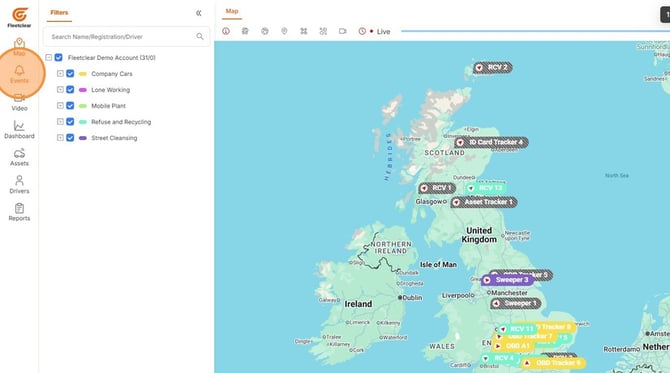
From the main Map dashboard, Click "Events" in the left-hand panel menu.
Step 15
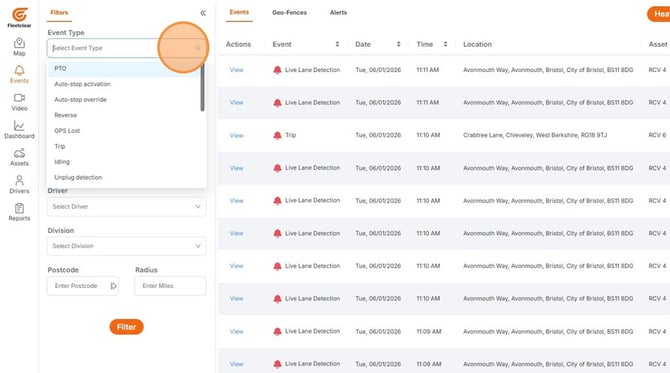
Search by Event Type, Asset, Date From and To, Start Hour, End Hour, Driver, Division, Postcode or Radius.
Step 16
Click "Filter" once you have entered in your search parameters.
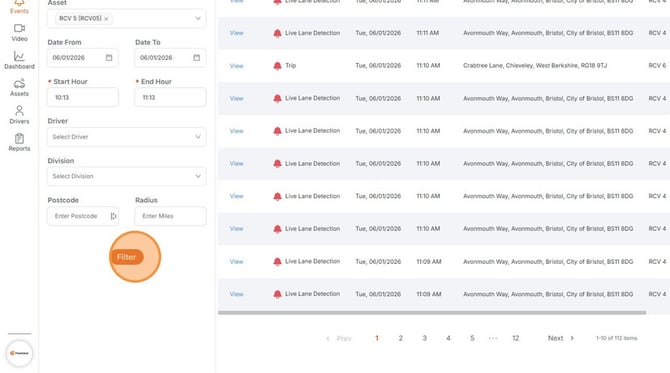
Step 17
Find the event from the filtered list and Click "View"
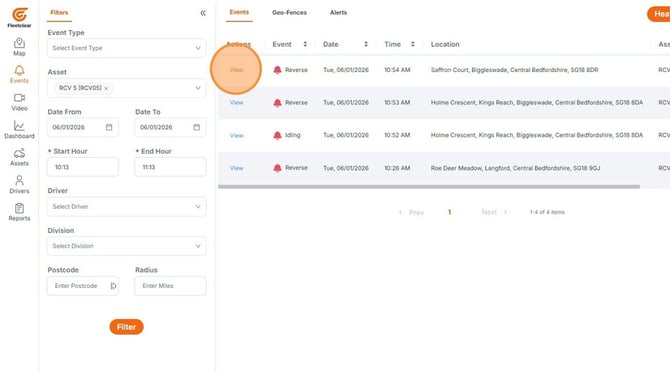
Step 18
You can adjust the window of time from 15 seconds to 30 seconds, 1 minute, 5 minutes and 15 minutes. This will give you the assets location on the journey at the time of the events indicated by the Warning Bell icons on the map.
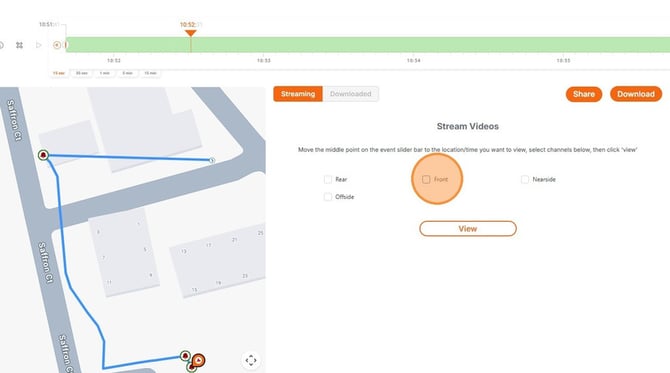
Step 19
Select the camera or cameras you'd like to stream. For the purpose of this guide, I have selected "Front" and then clicked "View".
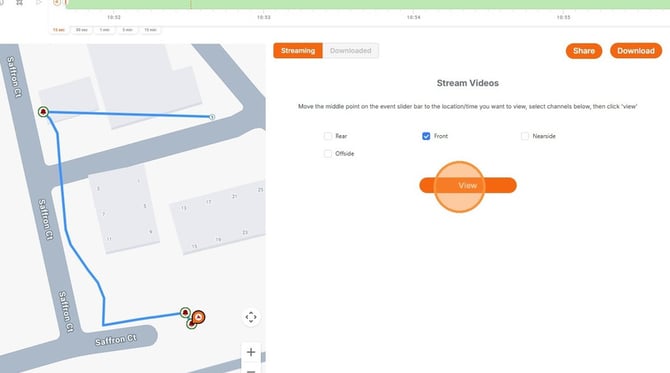
Step 20
Once you have got the selection you desire, you can either share or download your footage. To Share, Click "Share".
Step 21
You can copy the unique URL and password to your clipboard and share them internally with colleagues or third parties outside of the Platform.
Accessing Your Footage Downloads
Step 22
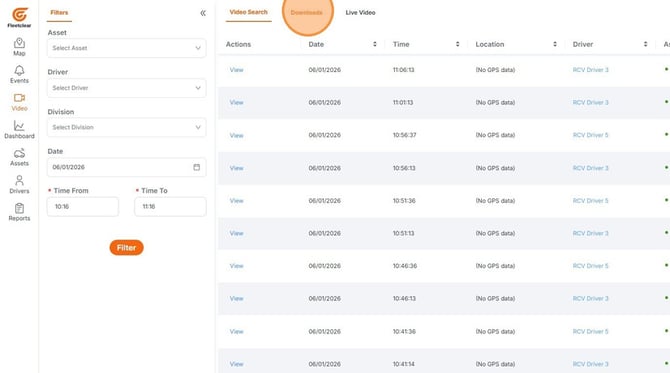
Navigate to "Video" in the left-hand menu panel. From here, Click "Downloads".
Step 23
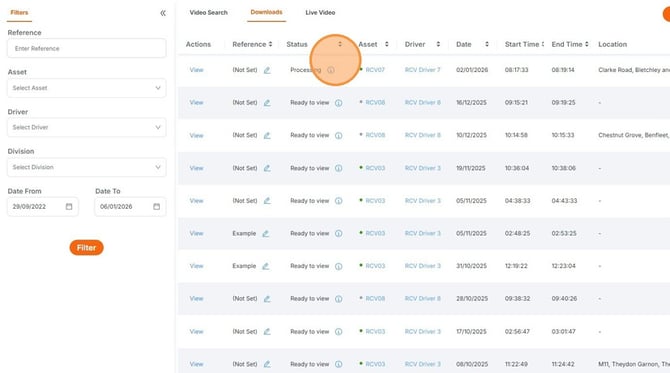
You will find a list of download requests and their current status i.e. "Processing" or "Ready to view".
Step 24
Click “View” to watch footage. Then click “Export” Twice to download a copy to your device.
Please note, downloaded footage requests sit on the cloud for 90 days.
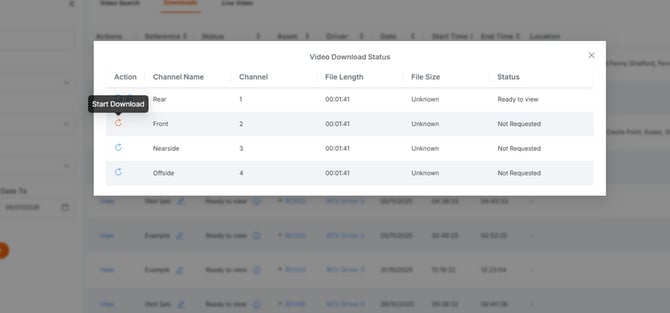
Step 25
You can add additional cameras to download footage from later by clicking the ‘i’ icon next to ‘Ready to View’.